

Did you know there are two main ways to update your Plex server?
A very long time ago I had Plex installed on my old computer and for some reason, it was not allowing me to install the updated server versions via the web Plex server interface.
Updating your Plex server via the web interface is the easiest way to install and update your Plex server.
However, the alternative way to upgrade your Plex server version is to manually download the executable file and install it like installing the application on the computer using the old-school install wizard.
You can find the latest download file for Windows here.
What is Plex?
Plex gives you one place to find and access all the media that matters to you. From personal media on your own server, to free and on-demand Movies & Shows or live TV, to streaming music, you can enjoy it all in one app, on any device.
And, it’s really simple to start using…
First, if you are streaming content provided by us or one of our partners (Movies & Shows, live TV, TIDAL music), then you are good to go as soon as you have an account, just install an app on your phone, Smart TV, computer, or simply open up our web app on your browser!
If you are looking to set up your own personal media server to house your own video or music files, there are a few more (simple!) steps to get up and running.
How it works for your own personal content:
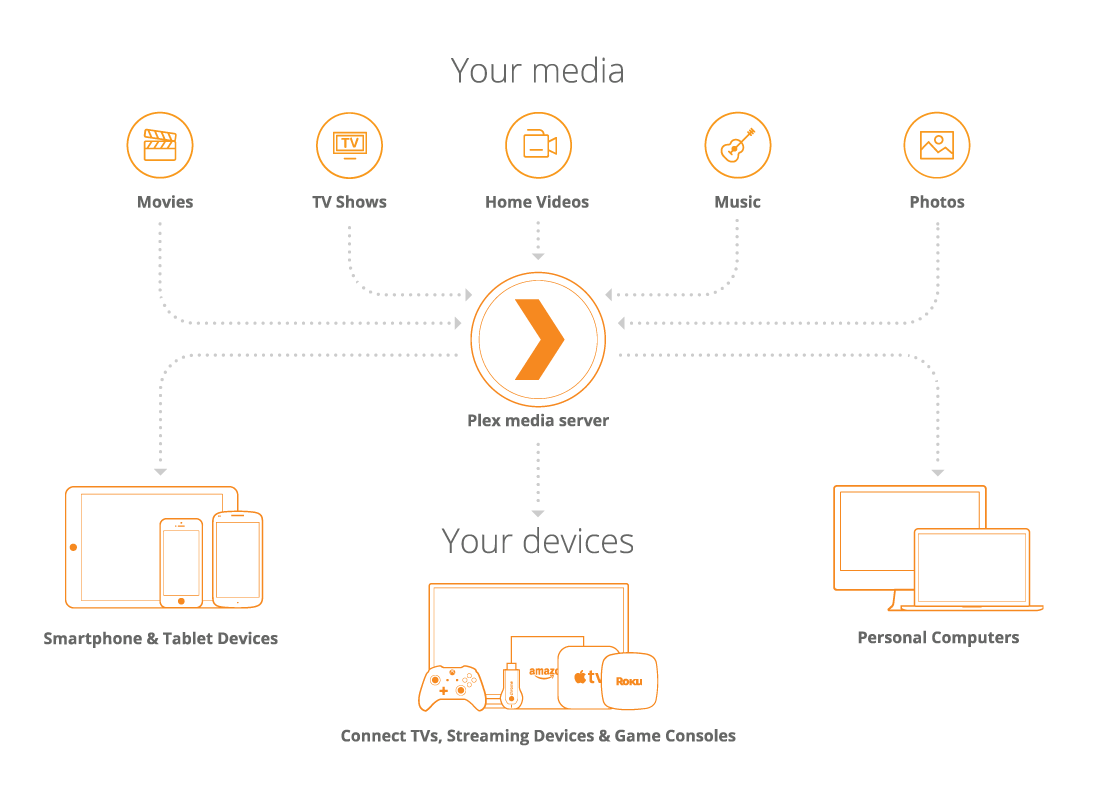
- Install and run the Plex Media Server on a computer (or compatible NAS device or NVIDIA SHIELD) where all your media is stored and managed in movie, TV show, home video, music, and photo libraries.
- Add media libraries by type of content and let Plex do the rest—cataloging, adding artwork and info—it’s all automatic.
- Install and open the Plex app on virtually any device—smartphone, tablet, smart TV, streaming device, game console, personal computer, or any browser.
- Wherever you are, press play, sit back, and enjoy your media as it streams from the Plex Media Server to your device.
For more information about Plex features, see this page.
Once you are up and running, you can:
- Share home movies from your Chicago Mac with Grandma on her Roku in France.
- Stream music from your PC in London to your iPad while abroad in Tenerife.
- See photos on a SoHo LG Smart TV while they are stored in your Brooklyn brownstone.
- Set up your own DVR and record your favourite shows and games from over-the-air signal and watch anywhere!
- Link your TIDAL account and integrate your own personal library with TIDAL’s 60 million tracks.
What Media and Devices Work?
Plex supports these media file types
Plex Media Server supports all common media files:
- Movies, TV Shows, and Home Video: MP4, MKV, AVI, MOV, DIVX, and more
- Music: MP3, M4A, FLAC, WMA, and more
- Photos: JPG, PNG, RAW, TBN, and more
Plex Media Server Compatibility
Plex Media Server is supported on computers running all the major operating systems as well as NAS devices:
- Windows
- macOS
- Linux
- NVIDIA SHIELD
- Many popular NAS devices such as QNAP, Synology, Netgear, Drobo, and more
