I thought about creating this video tutorial for a long time as it has been an issue since the beginning.
Have you ever installed a copy of Microsoft Windows or set up a computer after buying it and turning it on and after a while realizing that your keyboard does not work in the way you want it to as it’s not showing symbols from the country you live in?
This does occur when you buy technology from overseas when it’s cheaper and when the shop sets it up they set it up in the country you purchased the machine in.
Well, this is an issue we all have had to deal with at some point in time.
Microsoft has made this easier to fix now since Microsoft Windows 10 and Microsoft Windows 11.
Before we used to have to go into the language and regional settings and set it up there but now the settings are easier to find as it becomes a one-two-click change on your Windows taskbar.
Change your display language
The display language you select changes the default language used by Windows features like Settings and File Explorer.
Select Start > Settings > Time & language > Language & region.
Choose a language from the Windows display language menu.
Using the Language bar to Switch Keyboard Layouts
When you switch a language by using the Language bar, the keyboard layout changes to the keyboard for that language.
Use the Language bar when you:
- Want to switch between languages with a Latin alphabet, such as English, Spanish, or French, and a language with a non-Latin alphabet, such as Arabic or Chinese.
- Want to switch between languages with a non-Latin alphabet, such as Greek or Russian.
- Prefer to use native keyboard layouts when you type in different languages that have a Latin alphabet.
- After you have enabled the keyboard language that you want, open your document and place the cursor in the document where you want to start to type text in a different language.
- Click the language icon

 on the Language bar, which should appear on your task bar near where the clock is, and then click the language that you want to use.Keyboard shortcut: To switch between keyboard layouts, press Alt+Shift.Note: The icon is just an example; it shows that English is the language of the active keyboard layout. The actual icon shown on your computer depends on the language of the active keyboard layout and version of Windows.If you have set up more than one keyboard layout for a single language, you can switch between layouts by clicking the keyboard layout icon on the Language bar and then clicking the keyboard layout that you want to use. The name on the indicator changes to reflect the active keyboard layout.
 - Repeat steps 1 and 2 to switch between different languages.
I don’t see the Language bar
In most cases, the Language bar automatically appears on your desktop or in the taskbar after you enable two or more keyboard layouts in the Windows operating system. You cannot see the Language bar if it is hidden or only one keyboard layout is enabled in the Windows operating system.
If you don’t see the Language bar, do the following to check to see if the Language bar is hidden:
In Windows 10 and Windows 8
- Press the Windows logo key and type Control to search for the Control Panel app.
- Click Control Panel.
- Under Clock, Language, and Region, click Change input methods.
- Click Advanced settings.
- Under Switching input methods, select the Use the desktop language bar when it’s available check box, and then click Options.

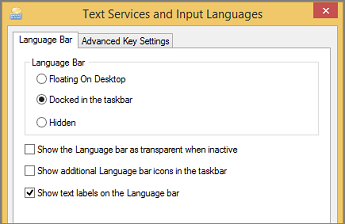
- In the Text Services and Input Languages dialog box, click the Language Bar tab, and make sure that either the Floating On Desktop or the Docked in the taskbar option is selected.